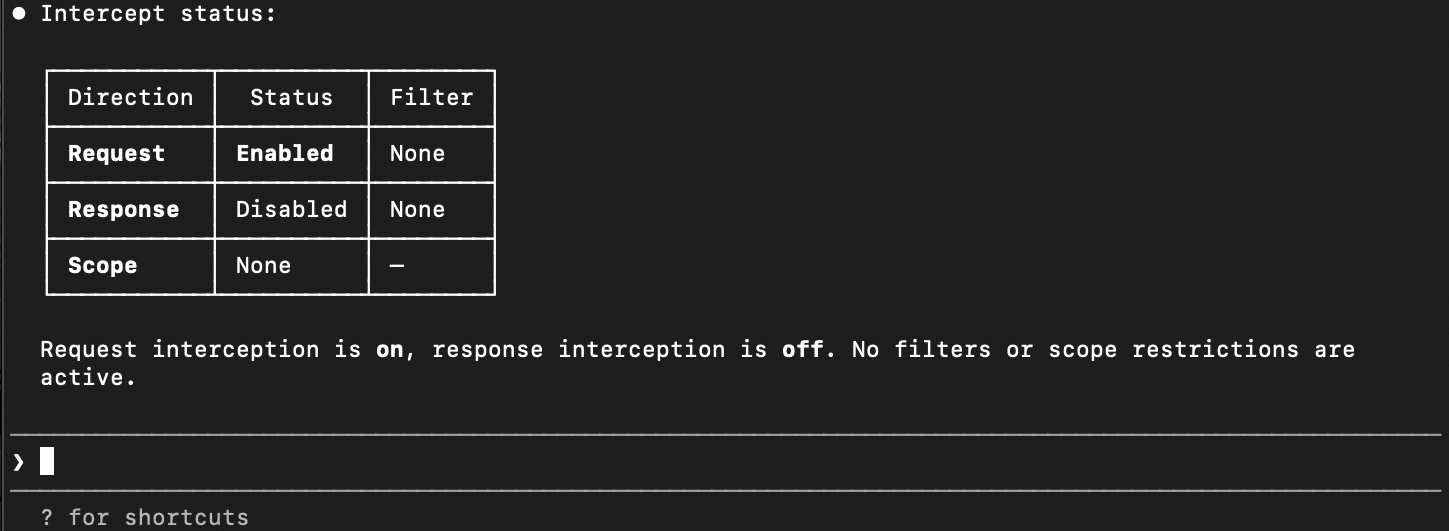
Using Caido Skills
In this tutorial, you will learn how to use Caido Skills to integrate Caido with AI agents.
Skills
In the context of AI, "skills" extend the capabilities of an agent by providing the instructions, data, scripts, commands, and reference material needed in order to perform a specific task or series of tasks.
The official Caido Skills provides full coverage of Caido's API, allowing you to instruct AI agents to carry out tasks that you would normally have to do manually such as:
- Search, retrieve, resend, and edit requests with HTTPQL.
- Access Replay sessions/collections/entries.
- Fuzz request payloads.
- Create and manage scope presets.
- Create and manage filter presets.
- Store environment variables.
- Create, list, and update findings.
- Monitor and cancel background tasks.
- Switch between projects.
- Manage uploaded files.
- Enable and disable traffic interception.
- List installed plugins.
- Convert requests as cURL commands.
- Check the status of the instance.
Configuration & Installation
To make the Caido Skills available to the Claude Code CLI tool:
- Create a new project.
mkdir my-project- Navigate to the project directory.
cd my-project- Add Caido Skills to the project.
pnpx skills add caido/skills --skill='*'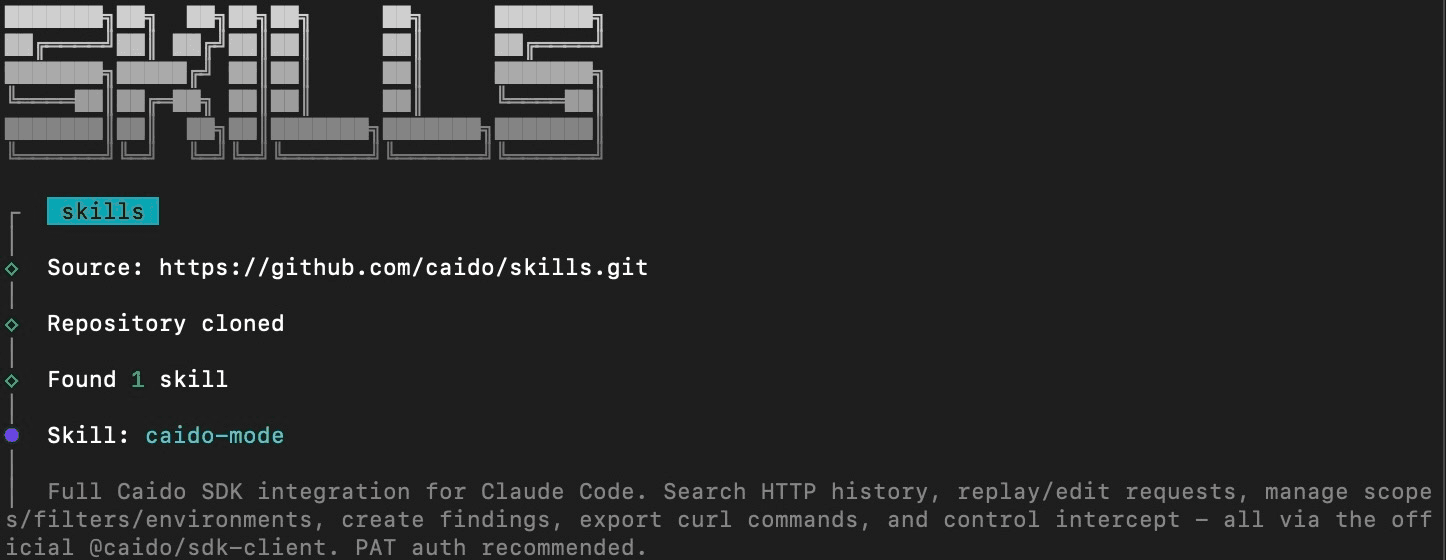
- When prompted, use the down arrow key and spacebar to select
Claude Codeand pressENTERto add it as an additional agent.
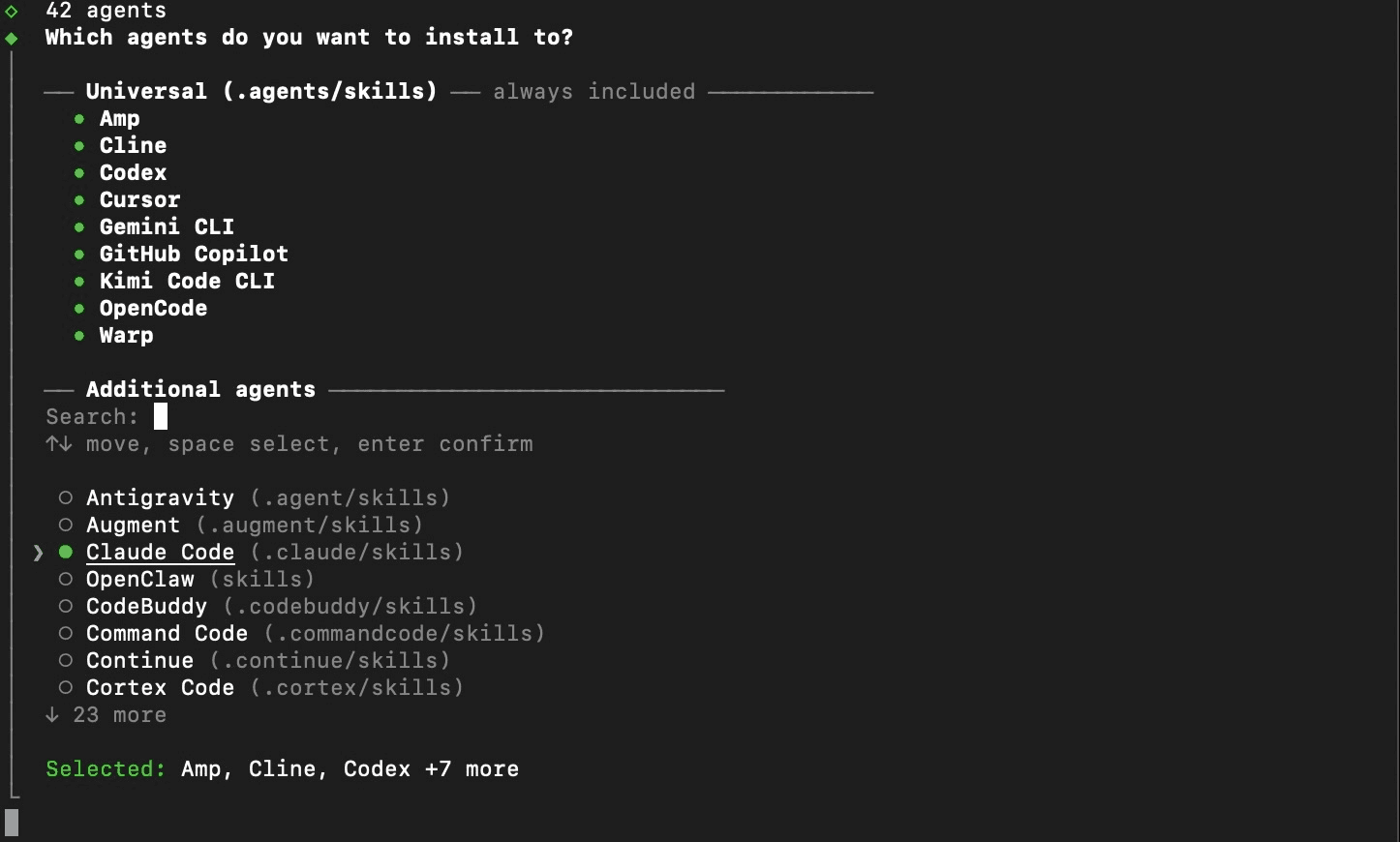
- Select either the
ProjectorGlobalinstallation scope.

- Select the
Symlinkinstallation method.

WARNING
Before proceeding with the installation, ensure to review and assess any messages displayed as Security Risk Assessments.
- To proceed with the installation, select
Yesand pressENTER.

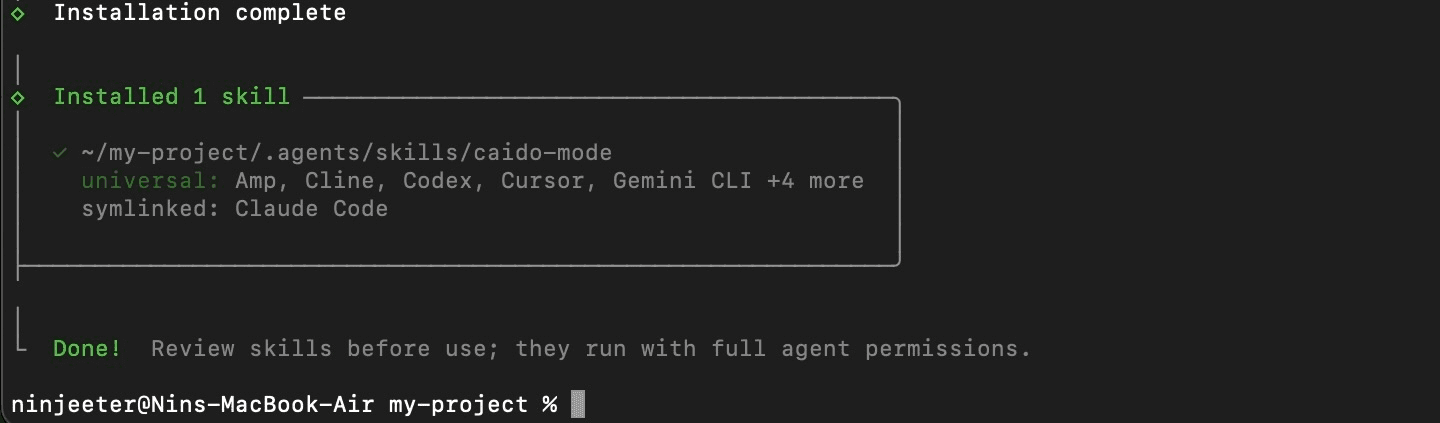
- Navigate to the
caido-modedirectory.
cd .agents/skills/caido-mode/- Install the dependencies.
npm install
Authentication
To authenticate to your Caido instance:
Execute the
setupcommand and provide the PAT.
npx tsx caido-client.ts setup "<PAT>"Connecting to http://localhost:8080...
[caido] Attempting to load cached token
[caido] Starting authentication flow
[caido] Authentication flow completed
[caido] Saving token to cache
Authenticated as: 01HWVM3E34S2G1BKHWB9ACEHK3
Saved to /Users/ninjeeter/.claude/config/secrets.json
URL: http://localhost:8080
PAT: caido_8yWtyz...
Access token: cached- To verify the authentication, execute the
auth-statuscommand.
npx tsx caido-client.ts auth-status[caido] Attempting to load cached token
[caido] Loaded token from cache
{
"authenticated": true,
"user": {
"kind": "CloudUser",
"id": "01ABCD2E34F5G6HIJKL7MNOPQ8",
"profile": {
"identity": {
"email": "user@example.com",
"name": "User Name"
},
"subscription": {
"plan": {
"name": "Individual"
},
"entitlements": [
{
"name": "feature:assistant"
},
{
"name": "feature:automate_workflows"
},
{
"name": "feature:export_filtered_requests"
},
{
"name": "feature:export_unlimited_findings"
},
{
"name": "feature:project_backups"
},
{
"name": "feature:replay_workflows"
},
{
"name": "feature:search_bar"
},
{
"name": "feature:unlimited_environments"
},
{
"name": "feature:unlimited_filter_presets"
},
{
"name": "feature:unlimited_plugins"
},
{
"name": "feature:unlimited_projects"
},
{
"name": "feature:unlimited_workflows"
},
{
"name": "node:advanced"
},
{
"name": "support:discord_role"
}
]
}
}
},
"health": {
"name": "caido",
"version": "0.55.3",
"ready": true
},
"url": "http://localhost:8080"
}- Navigate to the project directory.
cd ../../../- Launch the Claude Code CLI.
claude- Grant access to the project directory.
 Quick safety check: Is this a project you created or one you trust? (Like your own code, a well-known open source project, or work from your team). If not, take a moment to review what's in this folder
 first.

 Claude Code'll be able to read, edit, and execute files here.

 Security guide

 ❯ 1. Yes, I trust this folder
   2. No, exit

 Enter to confirm · Esc to cancel
NOTE
Assess and accept any security prompts encountered to continue.
- With Caido launched, test the Caido Skills integration.
Check the interception status of Caido.